So you have chosen WordPress to start your blogging journey. It’s a popular decision since WordPress powers 43% of all the websites on the internet. But starting a WordPress blog can feel daunting, especially if you have never used it before.
The good news is that you don’t need coding knowledge, technical skills, or weeks of WordPress training to get started. By just following the right process and making the right decision, you can build a functional blog website and start publishing.
By the end of this blog post, you will have your blog ready on WordPress, and you will have already published your first blog post.
Table of Contents
What Do You Need To Make a WordPress Blog?
You need a few things to start a blog on WordPress, and it helps to get a sneak peek before we move on to the process. This will help you understand the process and the tools you need to build a WordPress site.
- Domain– A web address people use to find a website. For example, this website’s domain name is Wishforwords.com, and I bought it to build this website.
- Hosting – A space on a server that stores your files. If the domain name is your street address, like Zone Bay 33, then the hosting is the house itself.
- Plugin – Add-ons you need on your website to add new, helpful features without using any code or technical knowledge.
- Theme – A mix of files that represents the design and layout of your website.
How Much Will It Cost To Make a WordPress Blog?
Building a WordPress blog with Bluehost will cost around $47.88 (₹3,348) for one year.
To keep things simple, we have kept the budget minimal. But this doesn’t mean any compromise on the quality and performance of your blogging site. Even the website you are reading this on was built on a minimal budget plan.
Although you need a domain, hosting, a plugin, and a theme, you just need to pay for hosting on Bluehost. You don’t have to pay for WordPress, and Bluehost includes one year of free domain registration.
But that’s not the only reason we are learning how to create a blog on WordPress with Bluehost.
Why Bluehost? Because it’s
- Simple
- Budget-friendly
- Easy to maintain
- Comes with automatic WordPress installation
- Offers everything in one place
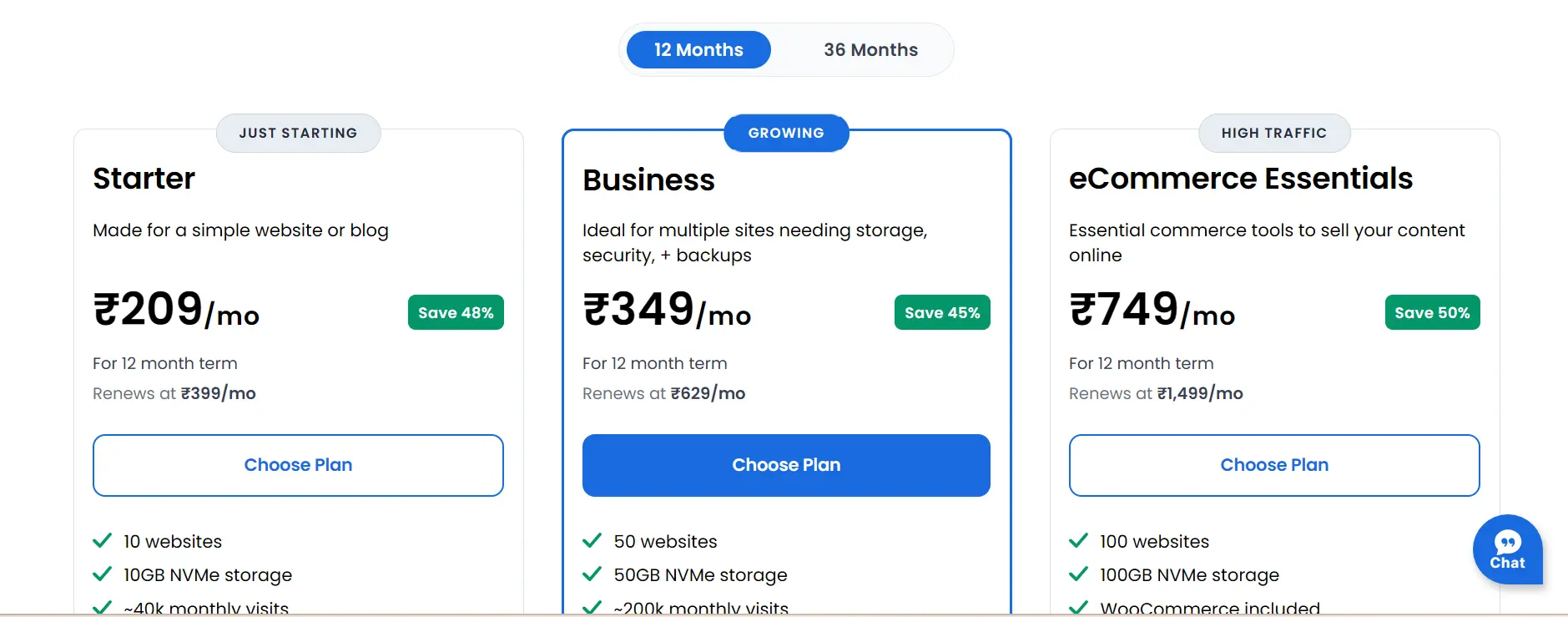
Here is the pricing list of Bluehost hosting plans
WordPress.com vs WordPress.org: Which One Should You Choose?
The most confusing thing for anyone new to WordPress, especially content writers, is WordPress.com vs WordPress.org.
WordPress.com is a hosted service where hosting is built in. You just need to log in. With WordPress.org, you get the software only, and you have to buy a hosting provider (in our case, we chose Bluehost).
But why choose WordPress.org when WordPress.com is free?
With WordPress.org, you get better customization, control, and security than with WordPress.com. Also, with a free WordPress.com blog, you get an address like Writer.wordpress.com, while with WordPress.org you get a professional domain name like Writer.com.
Important: If you already have a WordPress website and want to add a blog page, you can go directly to step xyz in the process mentioned below.
How To Make a Blog on WordPress: Step-by-Step Process?
1. Choose a Hosting Plan
As we discussed earlier, to build a website on WordPress, you need a hosting service (a place to store your files). And for that, we have already decided to use Bluehost for obvious reasons.
Now, sign up and click the Bluehost pricing plans to choose your hosting plan. Click on the basic web hosting plan from the available three options, where you will get
- Round-the-clock support
- 10GB storage
- Free domain (1 year)
2. Choose the Domain name
This is the screen you will see after choosing the plan on Bluehost.
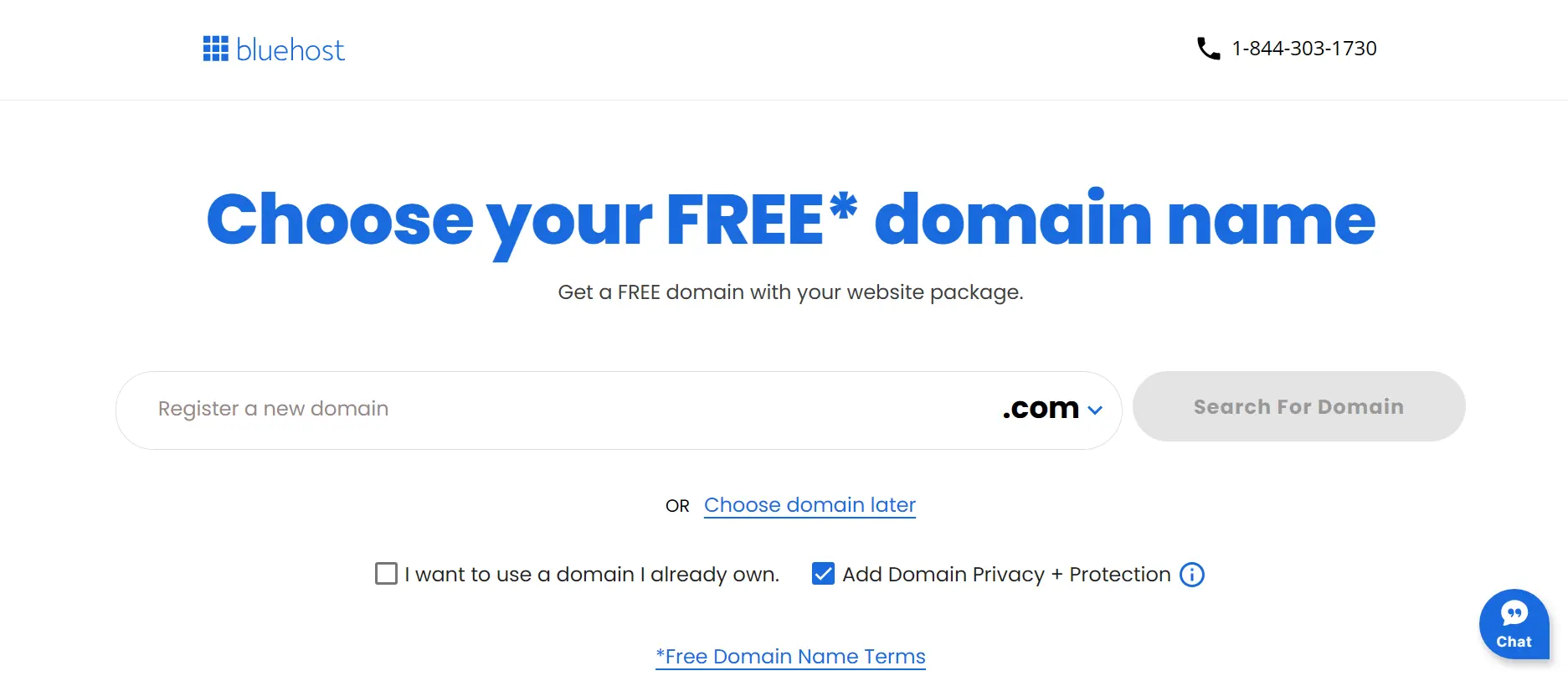
Here, you’ll choose a domain name for your blog website, which will be free for 1 year. There will be options for domain extensions like
- .com
- .org
- .in
Since you are designing a blog website, it’s best to go with the .com extension. But if your target audience is only in your country, or if you are going to write the website in another language, you can use a country-specific extension. For India, you should choose .in.
But the bigger question is: what should your domain name be?
Well, with 1.43 billion websites on the internet, it’s hard to choose a generic domain name and find it available right away. Also, you can’t just choose a random name like JajaOpi22.com just because it’s available.
Here is what you need to consider while choosing a domain name
- Keep it simple and easily readable
- Don’t make it lengthy (maximum 44 characters)
- It should be related to your niche. For example, for a Tech blog website, you can choose a domain name like HappyGo.com
- Avoid numbers, slang, or hyphens
- Choose a name that people can easily recall
- Don’t choose a word that is difficult to pronounce and spell.
3. Pay and Proceed
After you finalize the hosting plan and domain name, you’ll go to a payment page with options like a 1-year plan, a 2-year plan, recommended add-ons like website security, and more.
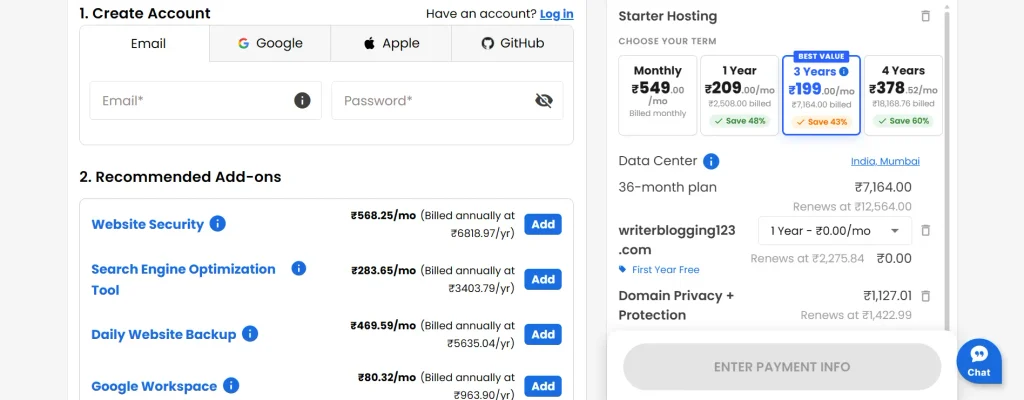
Click the 1-year plan option in the Starter Hosting box on the right-hand side.
Since we are designing a blog on WordPress with a minimal budget, we will not choose recommended add-ons like
- Website security
- Search engine optimization
- Daily website backup
- Google Workspace
Even this website has been managed without these add-ons for the last 3 years, and I haven’t noticed any issues. You also don’t need to buy domain privacy + protection and a professional email trial.
Make the payment and then move to the next section
4. Log In to WordPress
After completing the payment, you will see your Bluehost dashboard, and it will come up with a pop-up
“Your new WordPress site is installing”
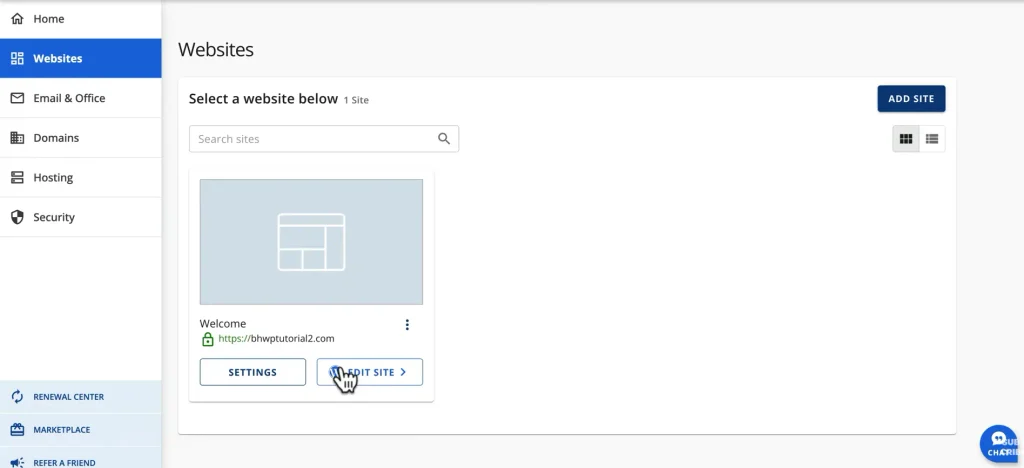
Close the pop-up, then click Websites, then Edit Sites to launch WordPress. You don’t need to create a separate WordPress account, as Bluehost does it for you automatically.
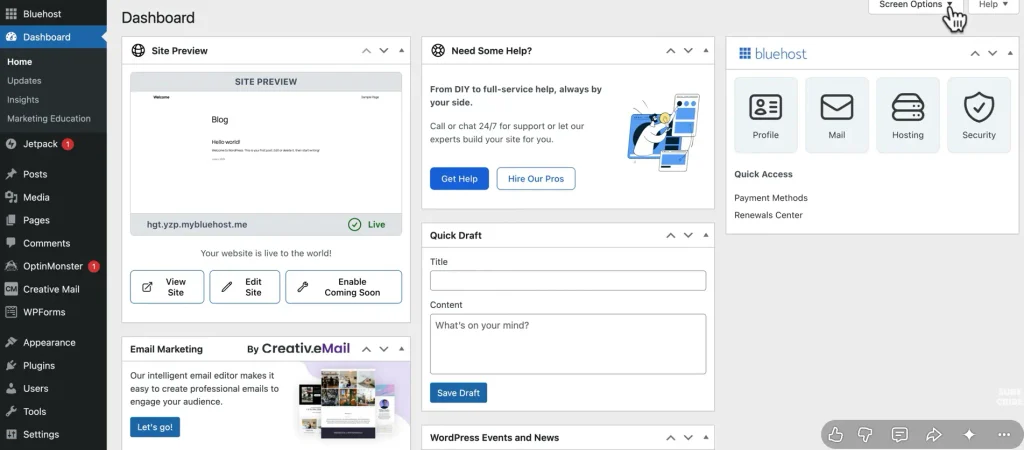
Your WordPress dashboard will look something like this
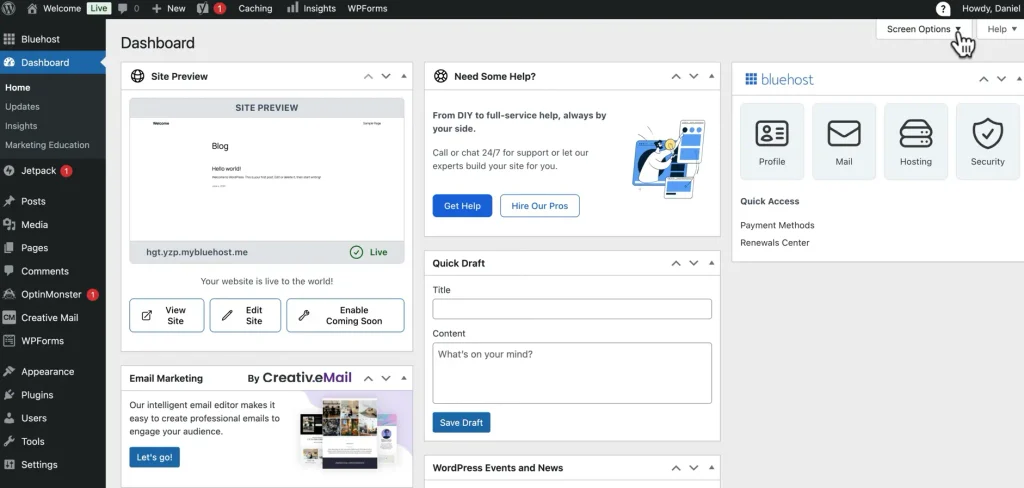
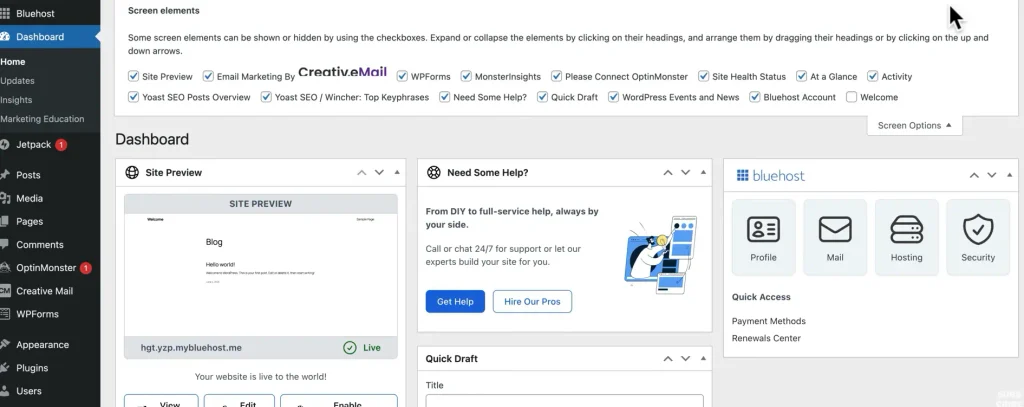
But before we move on, clear the dashboard to make it clearer and easier to understand. To do this, click Dashboard, then Screen Options, and uncheck all the boxes as shown in the image below.
5. Choose and Customize Theme
Next, we’ll move to the next step: selecting and customizing a theme.
A theme gives your blog a complete structure. It controls your website’s layout and fonts. We will choose a famous and free theme called “OceanWP”.
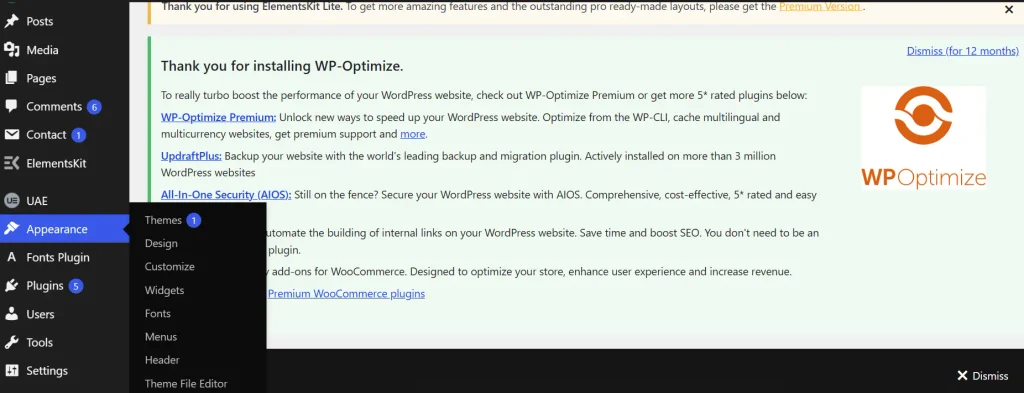
Click Appearance in the left-hand menu, then choose Theme from the dropdown.
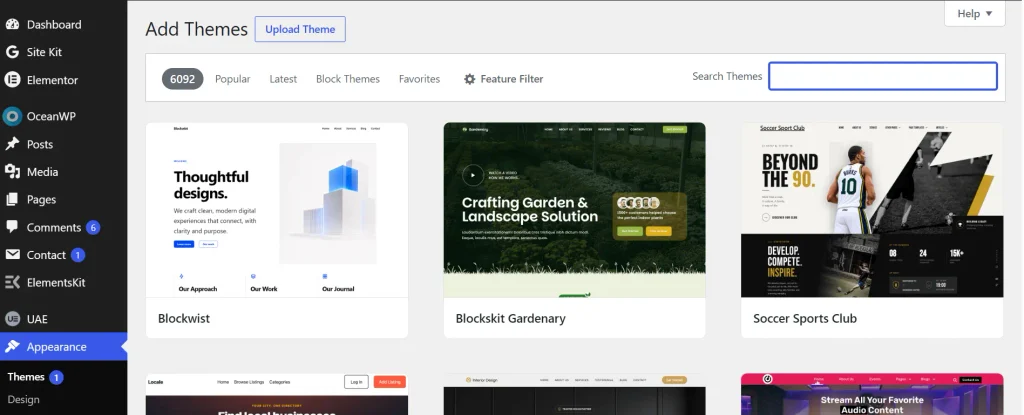
Just click on the “add theme” button and then type “OceanWP” in the search theme box.
Click Install, then activate the theme.
6. Install Plugins
Plugins are necessary because they add features that help your website look professional and function properly.
Click on the Plugins option from the left-side menu, then choose Installed Plugins
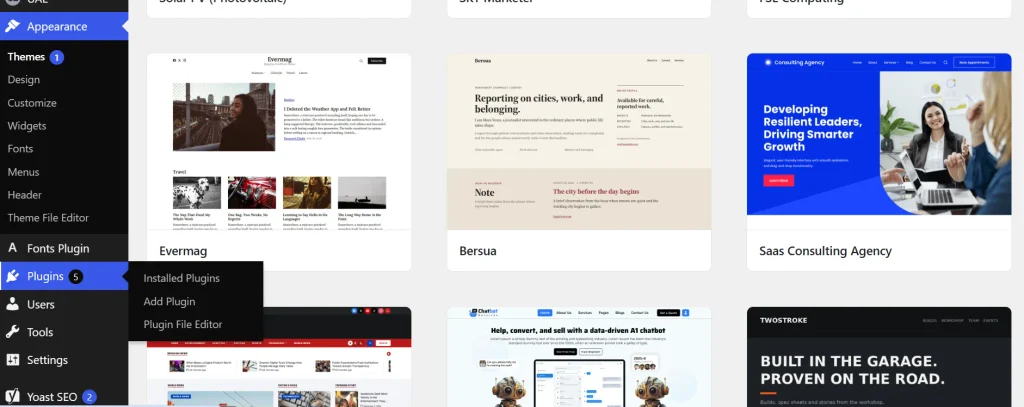
Although many plugins are available, we will install only the necessary ones. Before adding new plugins, delete all existing plugins. To do this, choose the Bulk Actions option in the Plugins section, then select Delete.
Now, to add plugins, click on Plugins, then on Add Plugins, and you will get a dashboard like this
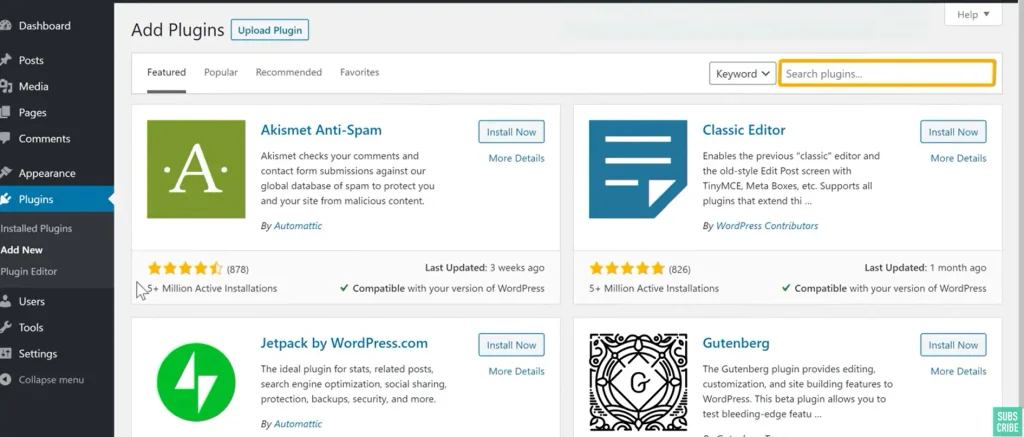
Just search the plugin names mentioned below, click on Add-Activate
Here are the important plugins on WordPress you should have for your blog website-
- OceanExtra (For additional features on the website)
- Elementor (For easy drag-and-dropwebsite design)
- Elementor Kit Lite (For additional features in website design)
- Contact Form 7 (For managing contact forms)
- MailChimp (Used for email subscription and newsletter)
- LiteSpeed Cache (Used to manage your website storage and speed)
- Yoast SEO (For optimizing your website and blogs)
Although there are many other ways to build a blog website, we have used the simplest one: Elementor. Learning how to create a blog page in WordPress with Elementor is easy and best for beginners.
7. Customize Site’s Design
Although you’ll use Elementor to design your website, we will customize the basic design using the OceanWP WordPress Customizer. To get there, click on Appearance>Customize.
Here, you can change your website’s font, header, footer, and colors. Make the desired changes.
💡Important Tip: Choose an easy-to-read font like Roboto
8. Create Home Page
Before creating the blog page and publishing the first blog, create the home page first. To do this, click on Pages>Add Pages.
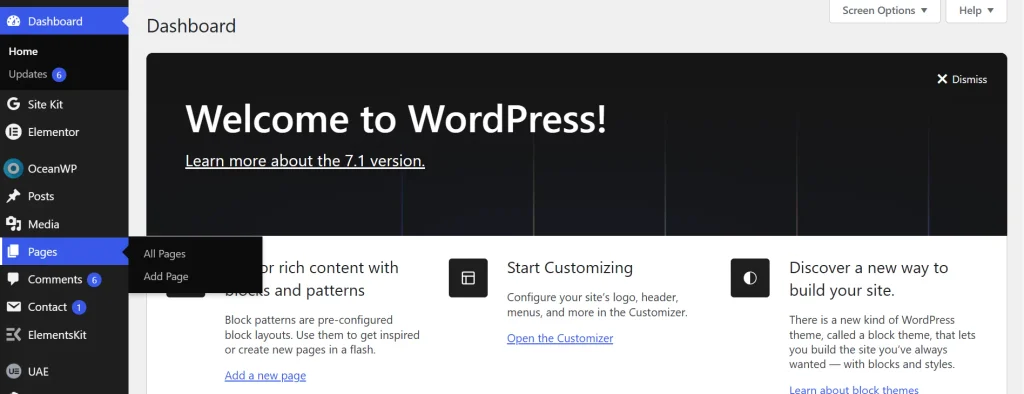
Type Home in the “Add Title” section and simply click on Publish.
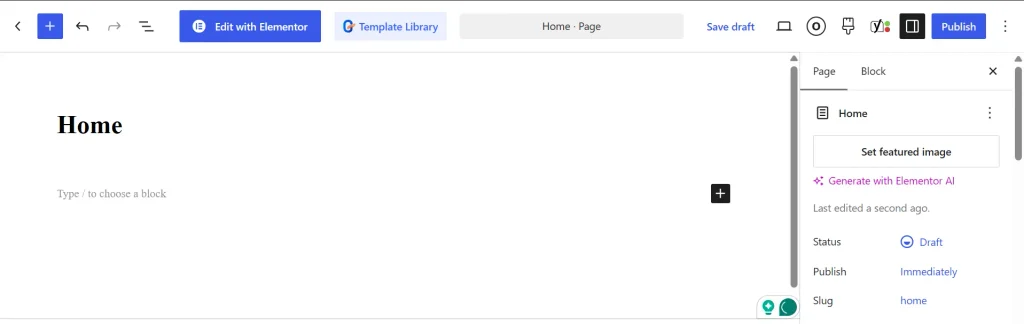
💡Important: You can customize and design your home page later using Elementor
9. Change Basic Settings
You also need to tweak a few basic settings before creating the blog page. These settings will make sure your home page loads whenever someone enters your domain name. We will also choose the site title and tagline.
Go to Settings and then, under the General Tab, change the Site’s Title and Tagline
Keep the site title the same as the domain name for consistency, and make sure your tagline aligns with the niche you chose for blogging. Like in my case, it’s “SEO Writing and Blogging Tips”
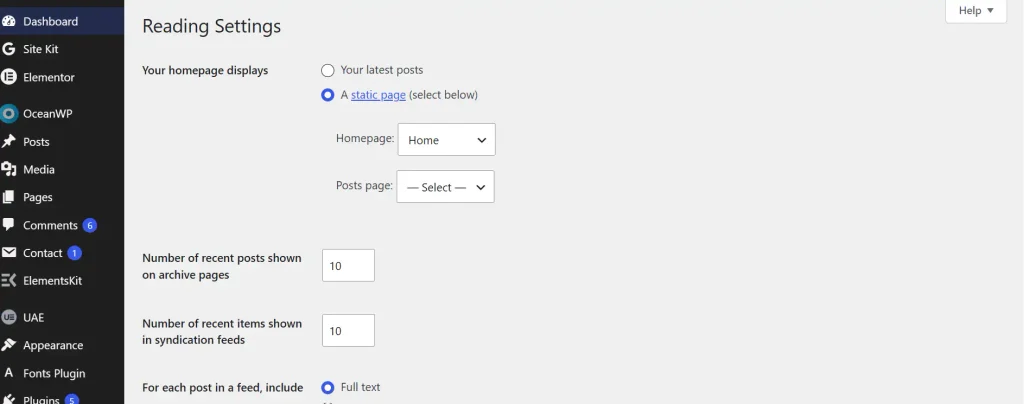
Under the Reading Tab (just below the General Tab), choose “A static page” in the “Your Homepage displays” option. Then, in the Homepage option, choose the Home option we just created.
10. Create Essential Pages
Now simply follow the same Pages>Add Pages process we used while creating the home page and create essential pages like
- Blog Page
- About Us Page
- Privacy Policy Page
- Contact Us Page
You can learn how to design and customize these pages using the free version of Elementor through this video
11. Write and Publish Your Blog
We are in the final phase of “how to create a blog on WordPress” and it is simply writing and publishing your blog.
To write a post, click on Post>Add Post.
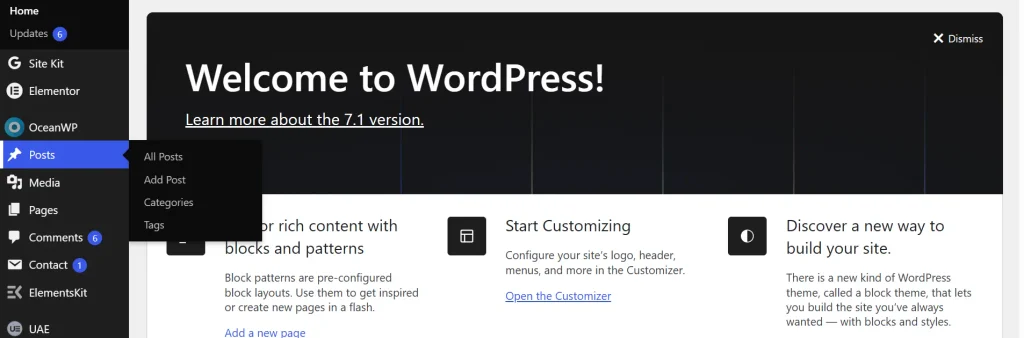
You will get a dashboard like this
This is the Gutenberg editor of WordPress, and it’s quite simple and easy to use.
Enter your Title and then write your first blog below it.
Then set your featured image from the right-hand side box.
Just below the blog, you will see a Yoast SEO box. Here, you can enter the meta description, focus keyphrase (primary keyword), and customize how your blog appears in search results.
After making the changes, click Publish, and your blog will go live, ready for the world to read.
What To Do After Publishing Your Blog?
Since this is your first WordPress Blog, you might wonder what to do after publishing your blog.
Well, there are a couple of things you can do after publishing your blog.
What To Do After Publishing Your Blog?
Check Your Live Blog
Visit the Live URL of the blog that you have published and check these things-
- Formatting
- Check images and captions
- Check internal links
- Make sure there is proper spacing between headings and paragraphs
Promote The Live Blog
Promoting your blog will not only increase the traffic on your website, but it will also let other potential readers know about your new initiative.
- Share it on your social media handles
- If you have an email audience, email it to them
- Link it to your Quora answers
- Write a short version of it on LinkedIn and then share the full-length article length
- Answer on Reddit and link your article in the answer
Monitor The Performance
Don’t just publish your blog on WordPress and leave it. Check how it’s performing
- Check Google Search Console for impressions and clicks
- Understand which search queries are bringing impressions
- Use data to improve headline and content
- Never expect immediate ranking, as it can take time
WordPress is one of the most popular and loved CMS platforms for managing a website. Along with its effectiveness and control, it offers a user-friendly UI that makes it easier for even beginners to launch a website. But if you’re still comparing platforms before getting started, our guide on how to start a blog in 2026 covers the main blogging platforms.
But if you have already made up your mind regarding WordPress, then by following the simple guidelines mentioned in this blog, you can easily create a blog website, manage it, promote it, and make your dream of becoming a professional blogger come true.
FAQ
How do I create a blog using a popular website platform?
WordPress is the most popular website platform, powering 43% of websites on the internet. You can create a blog with WordPress by buying a hosting plan, which includes a free domain name for 1 year. Then use WordPress and Elementor to easily create a blog website.
Is WordPress free to make a blog?
You can create a free blog on WordPress.com, not on WordPress.org. But even on WordPress.com, it comes with its own limitations-
- Your web address will end with the subdomain WordPress.com, like XYZ.wordpress.com
- You can’t install plugins to add new features to your website
- Limited customization
- Statistics are displayed for only 7 days
Can ChatGPT build a WordPress website?
Yes, ChatGPT can build a WordPress website, but it’s not like you enter a prompt like “build a WordPress website” and ChatGPT will make you a ready-to-go live website in just a couple of minutes.
Chatgpt can help you build a website, but don’t completely rely on it. Here are some ways you can use ChatGPT for building a WordPress website-
- You can ask for design samples, but be sure to mention your CMS, hosting, and plugins.
- Ask for solutions if stuck on a design.
- Ask for improvements in your current design.
- ChatGPT can help improve your website’s SEO.
- You can also ask ChatGPT to write website content, but don’t just copy and paste it; use it for ideas.
How much would it cost to build a blog on WordPress?
If you buy the basic hosting plan without any add-ons, it will cost you around ₹5,000-₹6,000. The domain comes free for 1 year. So all you need to do is buy the hosting plan.
Do I need coding knowledge to build a blog on WordPress?
No, you don’t need to be a coding expert to build a blog on WordPress. You can install plugins like Elementor that allow you to use the “drag and drop” feature to build your website.